Boom's Teachers' Utilities

Boom's Help for Rookie Teachers Suggestions for survival.

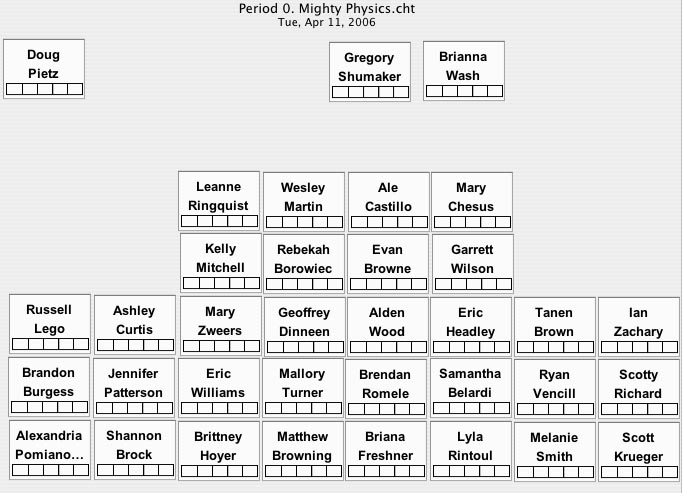
Seating and Drilling Programs (free)(see sample chart below):

Easy Seats & Driling (for Windows), Seating & Drilling for Mac OSX Tiger or Leopard, and MacSeats (for Mac Classic) will import your class lists from Text files from grading programs, and quickly add the students' names to your class room seating arrangements. Or you may type in the names yourself.

Names can be added randomly or alphabetically. Classes may be randomized at any time for new charts.

You can arrange your rooms in any format you like. The room arrangements and seating charts can be edited by dragging with the mouse. Kids can be exchanged, added or deleted. Spaces for attendance or tardies may be included.  Example:
Fun Class Drilling Program (included):

Class Drill randomly displays in LARGE FONT the students' names onto your computer or LCD screen. This can be used for calling on kids for drills, selecting cooperative learning groups or any other activities where fun, hi-tech, impartial calling is needed. The kids don't argue with The Computer.

You can also create lists of vocabulary words or short questions that can be called upon the screen for the kids to answer as their names are called up. Much fun to use.

The Manuals and Suggestions are found in the HELP Menus.

Click here to Download Mac OSX (Tiger/Leopard) Seating & Drilling.

Click here to Download Macintosh Classic Seating & Drilling.

Click here to Download Seating & Drilling for Windows. (This may not run under XP or Vista. If not, you might need to use a Mac for your seating charts).

Click here to Download Chemistry Formulas Practice Software.

How to Import Your Class Rosters into Seating Charts and Class Drill:

If you are using PowerGrade, follow these steps:

1. Open a class in PowerGrade.

2. Go to Reports/Custom Export

3. Drag the top item, Last, First from the Student Fields into the Export Fields.

4. Uncheck Column titles on first row.

5. Click on Export.

6. In Save, type a very short (not over eight characters and without spaces) title for this class followed by "dot" txt. For example: per2.txt. Save it in the same folder where your downloaded seating & drilling program is located.

12. Repeat the above for your other classes.

The text files are now ready to use with our Seating and Drilling programs:

1. Run Seating and Drilling.

2. Check the Help menu for suggestions, etc.

3. For Roster Source, choose "Text File" and use the ones created above.

Any questions, contact The Boom.

Return to Boom Page